Drawing site layout plans
Navigation
The Plot Plan Editor is a drawing tool for creating site layout plans that accompany the septic system design for permitting.
What is Required in a Plot Plan?
The plot plan’s purpose is to show where the septic system is going to be installed and to verify that isolation distances are maintained. Preparing the plot plan does not require much expertise, just familiarity with the building site. The plot plan generally does not need to be very formal, a sketch on 8 1/2 by 11 paper generally suffices. However, it does need to be complete.
Use the following check list to be sure of the plot plan’s completeness:
The plot plan must include:
- Owner name, site address, municipality, and phone number.
- Property lines.
- Adjacent streets.
- Locations of:
- proposed structure and any existing buildings
- building sewer and septic tanks
- driveway
- all wells, springs, water lines and water mains
- the septic system disposal area width and length (see drawings)
- Direction of slope.
- Distance to stream (if any).
- Deep pit (where the soil profile was examined by the sewage enforcement officer). Show distances to two closest property lines.
- Alternate disposal field location, if this is an alternate system.
- Any rights-of-way and/or public utility lines.
- Isolation distances. The following indicate the MINIMUM isolation distances.
| From the treatment tanks: | ||
| 10 | ft | Property line or right of way, occupied buildings, swimming pools, driveways, water supply lines under pressure |
| 25 | ft | Streams, lakes, or other surface waters |
| 50 | ft | Individual water supply or water supply system suction line |
From the absorption area: | ||
| 5 | ft | Active on-lot systems |
| 10 | ft | Property lines or right-of-way, occupied buildings, swimming pools, driveways, surface drainage ways, rock outcrop, natural or man-made slope grater than 25%, water supply line under pressure |
| 50 | ft | Streams, lakes, or other surface waters |
| 100 | ft | Individual water supply or water supply system suction line, mine bore holes, sink holes, or subsistence |
Accessing the Plot Plan Editor
The Plot Plan Editor can be opened from:
- The Plot Plan button on the Design Navigator
- The Plot Plan button on the Finish page of the Design Wizard
Drawing Modes
There are three drawing modes:
 Settings
  Edit
Edit  Create
Settings Mode
In the settings mode you can:
 save the plot plan to your online account. The plot plan is saved separately from the design data. The online and desktop plot plan editors use completely different editors and storage formats. The online version uses the latest in web technology that is was not available for the desktop version.
 download the plot plan as a pdf
- choose drawing scale - 1" = [25’,50’,100’,200’,400']
- change how the grid and north arrow are related - the grid can be synced with the north arrow so that the grid follows north-south, east-west lines or the more traditional vertical-horizontal alignment.
 reset the zoom to none
 set the zoom level
- move the viewport of the plot plan. Think of it as the plot plan being a window over a huge map. You can slide that map around under that window to optimize the view of the larger map.
Scales
The plot plan has a 7.5 in x 9.25 in drawing area, which translates to real world dimensions of:
| Scale | Width | Height |
|---|---|---|
| 1" = 25' | 187' | 231' |
| 1" = 50' | 375' | 462' |
| 1" = 100' | 750' | 925' |
| 1" = 200' | 1500' | 1850' |
| 1" = 400' | 3000' | 3700' |
Edit Mode
In the edit mode you can:
- move and resize objects
- cut/copy/paste/delete objects
- group/ungroup objects
- undo/redo editing actions
- change colors/line widths/line styles/object fills/edit text
Selecting Objects
- Click a drawing object while in edit mode to select it
- Click and drag or hold the shift key down while clicking to select multiple objects
- Multiselect objects and click the
 group button to form a group and the
  ungroup button to disband a group.
Moving and Resizing
- A frame with handles should show around the selected object.
- Click and drag inside the frame to move the object
- Click and drag a handle on the frame to resize the object.
- The corners handles stretch/shrink the object in two directions.
- The side handles stretch/shrink the object in one direction.
- The handle that is outboard of the frame is the rotation control. Click and drag it to rotate the object.
Editing Attributes
Attribute editors appear depending on the type of drawing object you have selected.
- line width [1-5]
- fill [no fill, fill]
- line color (the color picker used depends on the browser you are using)
- fill color (the color picker used depends on the browser you are using)
- line style [solid, dashed, dotted]
- font style [normal, bold]
- font size
- text contents
Grid
The editor displays a background grid to help with alignment and scale. The grid defaults to aligning with the North Arrow, but can be reset. It is not saved into the pdf.
Create Mode
Create mode is where you add drawing objects to the plot plan.
Shapes are chosen from the dropdown menu when in Create mode. The actions for placing the shapes vary by the type of shape.
Basic shapes ( line,
line,  rectangle,
  circle,
  ellipse) are placed with a click and sized by dragging before releasing the click. These shapes stay in create mode after each shape is placed until you chose another shape or click the Edit or Settings mode buttons.
The  dimension tool works in the same way as the basic shapes. In addition the distance between the ends is automatically calculated and placed into a text box that can be edited later.
Poly shapes ( polyline,
  polygon) require a click for each vertex and finish when the [esc] key is pressed.
 Freehand starts with a click and continues drawing where ever the mouse is moved until the click is released.
“Things” ( building,
  well,
well,  tanks…) as well as
  Text are placed by clicking and then the mode automatically changes to edit so you can resize, rotate the object, set its text, etc.
The  system bed is the footprint of the absorption area from the design. It’s one reason the design needs to be done and saved before making the plot plan.
The Drawing Objects
 |
Name | Action |
|---|---|---|
|
line | click - drag - release |
|
rectangle | click - drag - release |
|
circle | click - drag - release |
|
ellipse | click - drag - release |
|
polygon | click … click - [enter] |
|
polyline | click … click - [enter] |
|
freehand | click - drag…drag - release |
|
dimension | click - drag - release |
|
text | click - edit |
|
building | click - edit |
|
well | click - edit |
|
septic tank | click - edit |
 |
aerobic tank | click - edit |
 |
combo tank | click - edit |
 |
dosing tank | click - edit |
 |
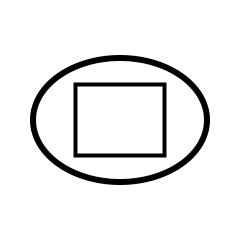
dosing tank | click - edit |
 |
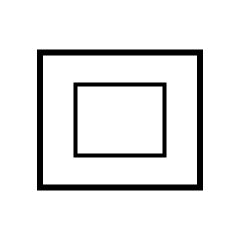
filter tank | click - edit |
 |
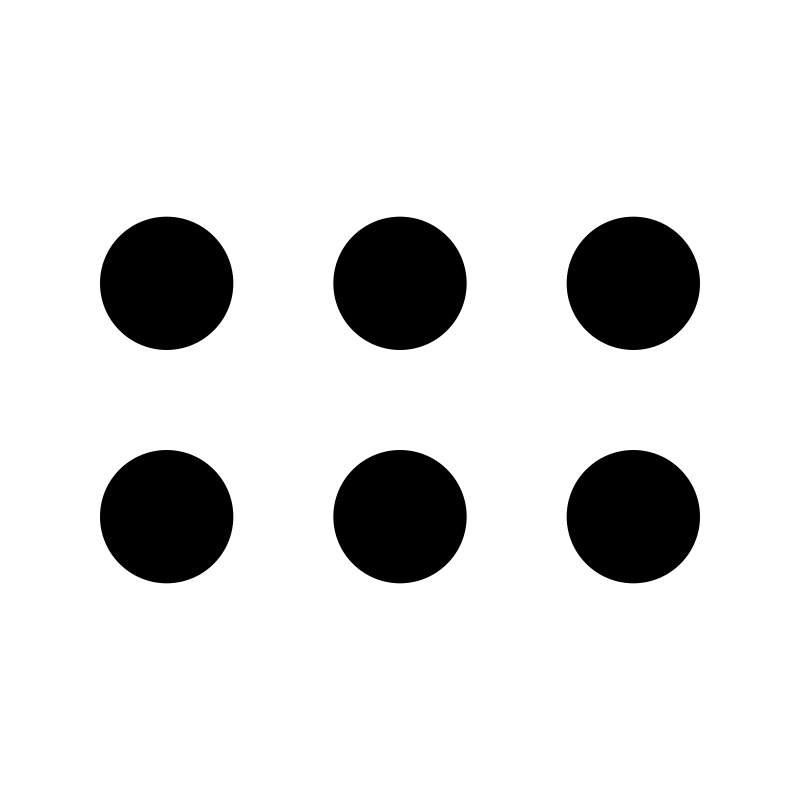
filter tank | click - edit |
 |
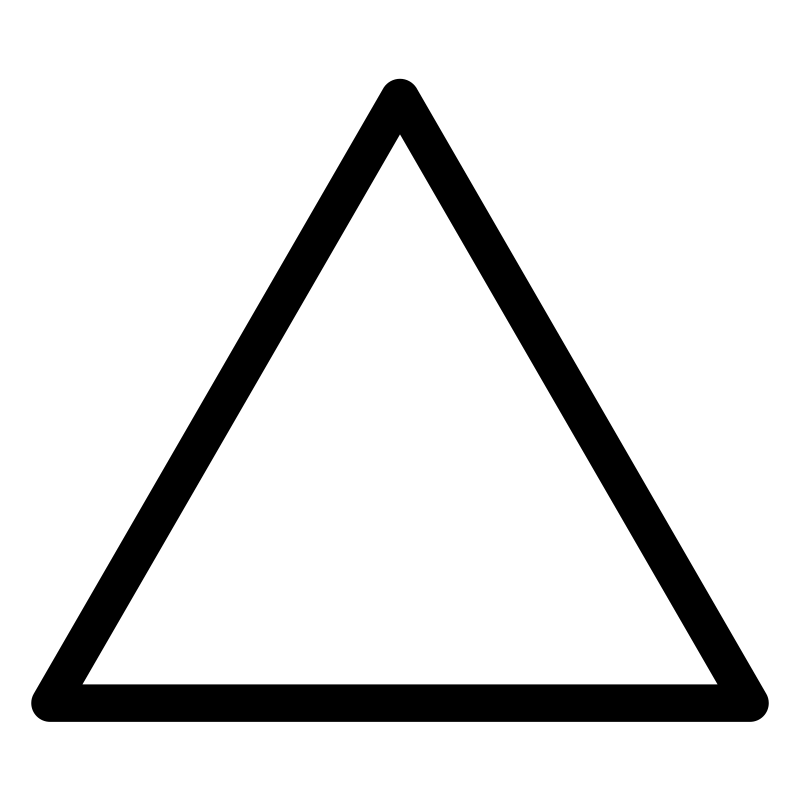
perc holes | click - edit |
 |
test pit | click - edit |
 |
clean out | click - edit |
|
system bed | click - edit |
Tips
- Use the grid for consistent spacing and alignment.
- Choose the scale that best fits your need early on. 1" = 50 ft is the default and works most of the time.
- Designing the plot plan here is optional — designs can be completed and saved without one, but a plot plan is required for design submission to the SEO nonetheless.
- When a plot plan exists for a design, it appears as a separate tab on the Finish page. The plot plan is rendered as a PDF that can be downloaded along with the design report.